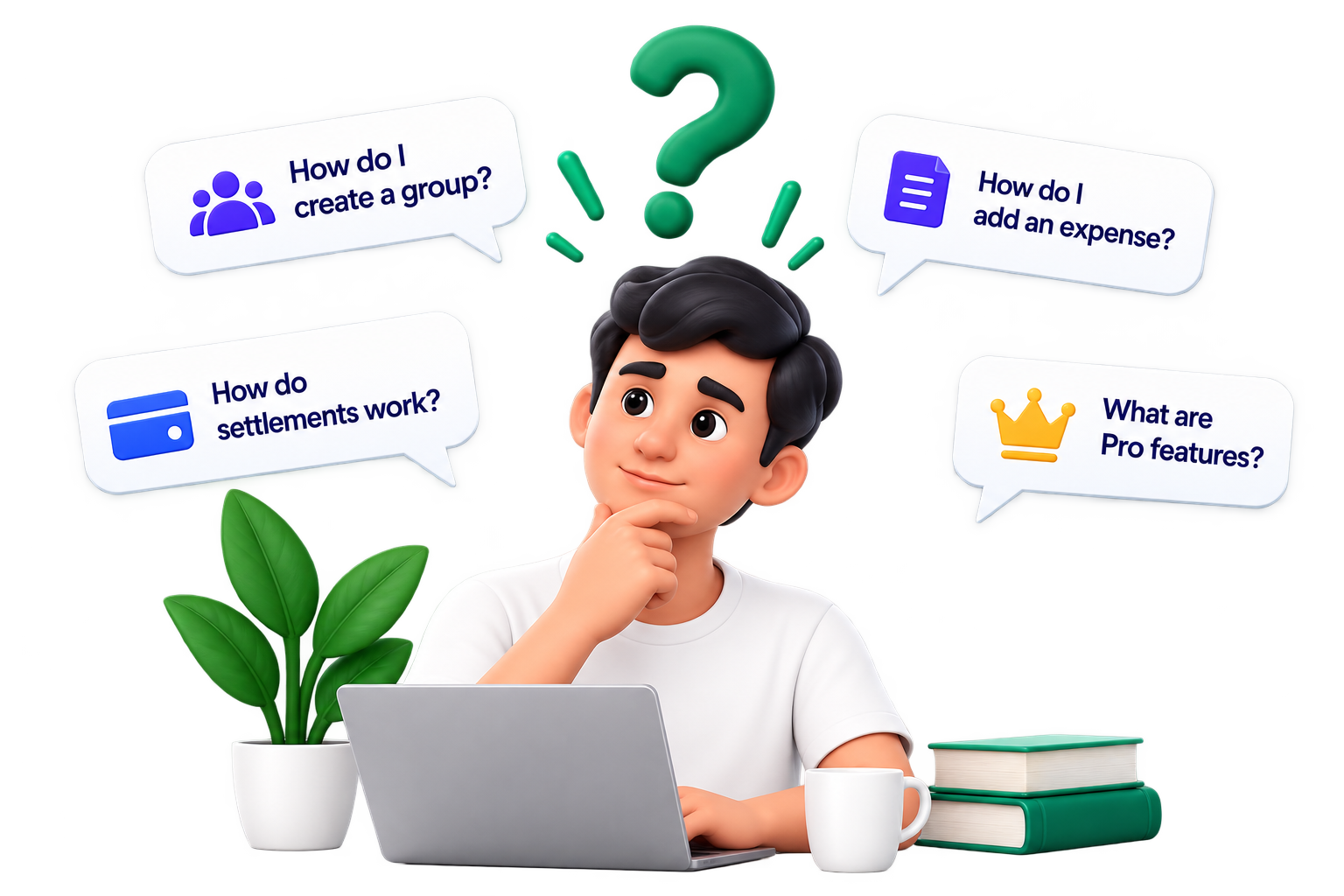
Find answers to the most common questions about Splitzon.
What is Splitzon?▾
Splitzon is a simple and smart app to share expenses with friends, roommates, family, and travel groups. You can create groups, add expenses, and let Splitzon handle the math — so you can focus on the people, not the payments.
Is Splitzon free to use?▾
Yes, Splitzon is free to use for all core features like creating groups, adding expenses, and settling balances. A Premium plan is available for advanced features.
Do I need to create an account?▾
Yes, a free account is required so your groups and expenses are saved and synced across devices.
Which platforms is Splitzon available on?▾
Splitzon is available on iOS, Android, and the Web, with your data staying in sync across all of them.
Is my data safe with Splitzon?▾
Yes, we use industry-standard encryption to keep your personal and financial data secure at all times.
Can I use Splitzon internationally?▾
Yes, Splitzon supports multiple currencies so you can use it while traveling or splitting expenses abroad.
How do I get support if I face an issue?▾
You can reach our support team anytime through the Contact Support button below or by emailing support@splitzon.com.
— GROUPS & MEMBERS —
8 answers
Groups & Members
Get answers about creating groups, managing members, invitations, permissions and more.
How do I create a group in Splitzon?▾
To create a group, tap the "+" button on the home screen and select "Create Group". Give your group a name, add a description (optional), and invite members. You can start adding expenses right away!
How do I invite members to my group?▾
Open the group, tap "Invite Members", and share the invite link via WhatsApp, Telegram, or SMS.
Is there a limit on the number of members?▾
Free groups support up to 10 members. Premium removes this limit entirely.
Can I remove a member from a group?▾
Yes, group admins can remove a member from the group settings page at any time.
Can I transfer group ownership?▾
Yes, go to group settings, select a member, and choose "Make Admin" to transfer ownership.
What permissions do group members have?▾
Members can add expenses, view balances, and settle payments. Only admins can remove members or delete the group.
Can I leave a group?▾
Yes, you can leave a group anytime from group settings, as long as your balance is settled.
What happens to expenses if a member leaves?▾
Their past expenses remain in the group history, but they won't be included in future splits.
— ADDING & SPLITTING EXPENSES —
10 answers
Adding & Splitting Expenses
Get answers about adding expenses, splitting bills, using different split methods, and managing expense details.
How do I add an expense in Splitzon?▾
Tap the "+" button on the home screen.
Enter the amount, a title (e.g., Dinner, Rent, Trip), and select a group.
Choose a category (e.g., Food, Travel, Shopping).
Select how you want to split (equally, by amount, or by percentage).
Add members and tap "Save".
That's it! The expense will be added and shared with group members.
What are the different split methods available?▾
You can split equally, by exact amount, by percentage, or by shares.
Can I split an expense unequally?▾
Yes, choose "By Amount" or "By Percentage" when adding the expense to split it unequally.
How do I edit or delete an expense?▾
Open the expense from the group, tap the three-dot menu, and choose Edit or Delete.
Can I add a receipt or image to an expense?▾
Yes, you can attach a photo of the receipt while adding or editing an expense.
What categories can I use?▾
Splitzon offers categories like Food, Travel, Rent, Shopping, Entertainment, and more.
Will members get notified when I add an expense?▾
Yes, all group members receive an instant notification when a new expense is added.
Can I add expenses in different currencies?▾
Yes, Splitzon supports multiple currencies for international groups and trips.
What happens if I added the wrong amount?▾
You can edit the expense anytime to correct the amount — balances update automatically.
Can I mark an expense as paid?▾
Yes, you can mark any expense or your share as paid manually from the expense details screen.
— PAYMENTS & SETTLEMENTS —
9 answers
Payments & Settlements
Get answers about settling balances, making payments, tracking who owes what, and using different payment methods in Splitzon.
How do I settle my balance in Splitzon?▾
Open the group and go to the Settlements tab.
Tap "Settle Now" next to the amount you owe.
Choose a payment method (e.g., UPI, card, or mark as paid offline).
Confirm the payment and you're done!
Once the payment is completed, the balance will be updated automatically for all members in the group.
What payment methods are supported?▾
Splitzon supports UPI, debit/credit cards, and marking payments as done offline.
Is it safe to make payments through Splitzon?▾
Yes, all payments are processed through secure, encrypted payment gateways.
Can I mark a payment as done manually?▾
Yes, if you paid someone outside the app (e.g., cash), you can mark it as settled manually.
How long does it take for a payment to reflect?▾
Online payments reflect instantly. Manual settlements reflect as soon as you mark them.
What happens after I make a payment?▾
The group balance updates automatically and all members are notified.
Can I view my payment history?▾
Yes, tap on any group and go to the Settlements tab to view full payment history.
Can I remind someone to settle their balance?▾
Yes, tap "Remind" next to their name to send a gentle payment reminder.
Does Splitzon charge any fees for payments?▾
Splitzon does not charge extra fees; standard payment gateway charges may apply.
— ACCOUNT & SECURITY —
10 answers
Account & Security
Get answers about your account, login, security settings, data privacy, and keeping your information safe on Splitzon.
How do I create an account on Splitzon?▾
Download the Splitzon app (iOS or Android) or visit our website.
Enter your mobile number and verify it with the OTP.
Add your name and profile details.
You're all set! Start creating groups and sharing expenses.
How do I log in to my account?▾
Enter your registered mobile number and verify with the OTP sent to your phone.
Can I change my registered mobile number?▾
Yes, go to Profile → Security → Change Mobile Number and verify the new number with OTP.
How can I reset my password?▾
Tap "Forgot Password" on the login screen and follow the OTP verification steps.
Is my data safe with Splitzon?▾
Yes, we use industry-leading encryption to protect all your personal and financial data.
Can I delete my account?▾
Yes, go to Profile → Security → Delete Account. This action is permanent.
What data does Splitzon collect?▾
We collect only what's needed — your name, mobile number, and expense data you enter.
Can I control who sees my information?▾
Yes, use the Privacy settings to control what group members can see about you.
How do I enable two-factor authentication (2FA)?▾
Go to Profile → Security → Two-Factor Authentication and follow the setup steps.
What should I do if I suspect suspicious activity?▾
Immediately change your password and contact support@splitzon.com.
— APP & PLATFORM —
9 answers
App & Platform
Get answers about the Splitzon app, supported platforms, device requirements, updates, and troubleshooting.
Which platforms is Splitzon available on?▾
iOS – Download from the App Store (iOS 13.0 or later)
▶Android – Download from the Google Play Store (Android 8.0 or later)
🌐Web – Access via our website at app.splitzon.com
Your data stays in sync across all devices, so you can use Splitzon anytime, anywhere.
What are the minimum system requirements?▾
iOS 13.0+, Android 8.0+, or any modern web browser.
How do I download and install the app?▾
Search "Splitzon" on the App Store or Google Play and tap Install.
Is Splitzon available on desktop or web?▾
Yes, visit app.splitzon.com from any desktop browser.
Can I use the same account on multiple devices?▾
Yes, log in with the same mobile number on any device to access your account.
How do I update the app?▾
Updates are available through the App Store or Google Play automatically or manually.
Why am I not receiving notifications?▾
Check that notifications are enabled for Splitzon in your device settings.
The app is not working. What should I do?▾
Try restarting the app, checking your internet connection, or reinstalling it.
Is Splitzon available in my country?▾
Splitzon is available worldwide with multi-currency support.
— BILLING & PREMIUM —
10 answers
Billing & Premium
Find answers about Splitzon Premium, subscription plans, billing, payments, features, and more.
What is Splitzon Premium?▾
Splitzon Premium gives you access to advanced features to make shared expenses even simpler. With Premium, you get:
Unlimited groups and members
Advanced expense insights and reports
Export to PDF/Excel
WhatsApp & Telegram notifications
Priority customer support
Upgrade to Premium and get the most out of Splitzon!
How much does Splitzon Premium cost?▾
Pricing details are available on our Plans page and may vary by region.
How do I upgrade to Premium?▾
Go to Profile → Billing & Premium and tap "Unlock More Together".
What payment methods are supported?▾
We support UPI, credit/debit cards, and major digital wallets.
Can I cancel my subscription anytime?▾
Yes, you can cancel anytime from Profile → Billing & Premium → Manage Subscription.
Will I get a refund if I cancel?▾
Refunds are handled as per our refund policy — please check the Plans page for details.
What happens after my subscription ends?▾
Your account reverts to the free plan, and Premium-only features become unavailable.
Is there a free trial available?▾
Yes, new users can try Premium free for a limited period.
What features are included in the free plan?▾
The free plan includes group creation, expense splitting, and basic settlements.
I was charged but didn't receive Premium. What should I do?▾
Please contact support@splitzon.com with your payment details for quick resolution.
— OTHER QUESTIONS —
11 answers
Other Questions
Find answers to miscellaneous questions about Splitzon, use cases, troubleshooting, and more.
What is Splitzon and how is it different from other expense apps?▾
Splitzon is a simple and smart app to share expenses with friends, roommates, family, and travel groups. Unlike traditional expense apps, Splitzon focuses on people — not just payments. You can create groups, add expenses, split them in different ways, and settle balances easily, with support across mobile, web, WhatsApp, and Telegram.
Simple and easy to use
Supports multiple split methods
Works across mobile, web, and chat platforms
Built for groups, trips, roommates, and more
Can I use Splitzon for personal expenses (not groups)?▾
Yes, you can track personal expenses in a solo group without inviting anyone else.
Is Splitzon available in my country?▾
Yes, Splitzon is available worldwide with multi-currency support.
Does Splitzon support multiple currencies?▾
Yes, you can add expenses in different currencies within the same group.
Can I export my data?▾
Yes, Premium users can export group data and reports to PDF or Excel.
How do I report a bug or suggest a feature?▾
Email us at support@splitzon.com — we welcome all feedback and suggestions.
Is there a limit on the number of groups I can create?▾
Free users can create up to 5 groups; Premium removes this limit.
Can I use Splitzon for business or teams?▾
Yes, teams can use Splitzon to track shared expenses like travel or office costs.
What happens if I lose my phone?▾
Log in with your mobile number and OTP on a new device — your data stays safe in the cloud.
How do I delete my data?▾
Go to Profile → Security → Delete Account to permanently remove your data.
Where can I contact support?▾
Reach us anytime at support@splitzon.com or via the Contact Support button below.
STILL HAVE QUESTIONS?
We're here to help
Can't find what you're looking for? Our support team is just a message away.
 Splitzon